
How to Manage Multiple Email Accounts as a Support Team
Learn how to manage multiple support email accounts without losing track of conversations. Covers unified inbox setup, routing, and team collaboration.
TidySupport Team
Published on April 11, 2026
Most support teams start with one email address: support@company.com. But as the company grows, so do the inboxes. Billing questions go to billing@, partnership inquiries go to partners@, and product feedback arrives at feedback@. Before long, your team is switching between three, four, or five inboxes throughout the day, and messages start slipping through the cracks.
This guide shows you how to manage multiple email accounts efficiently so nothing gets lost and your team stays sane.
What Is Multi-Account Email Management?
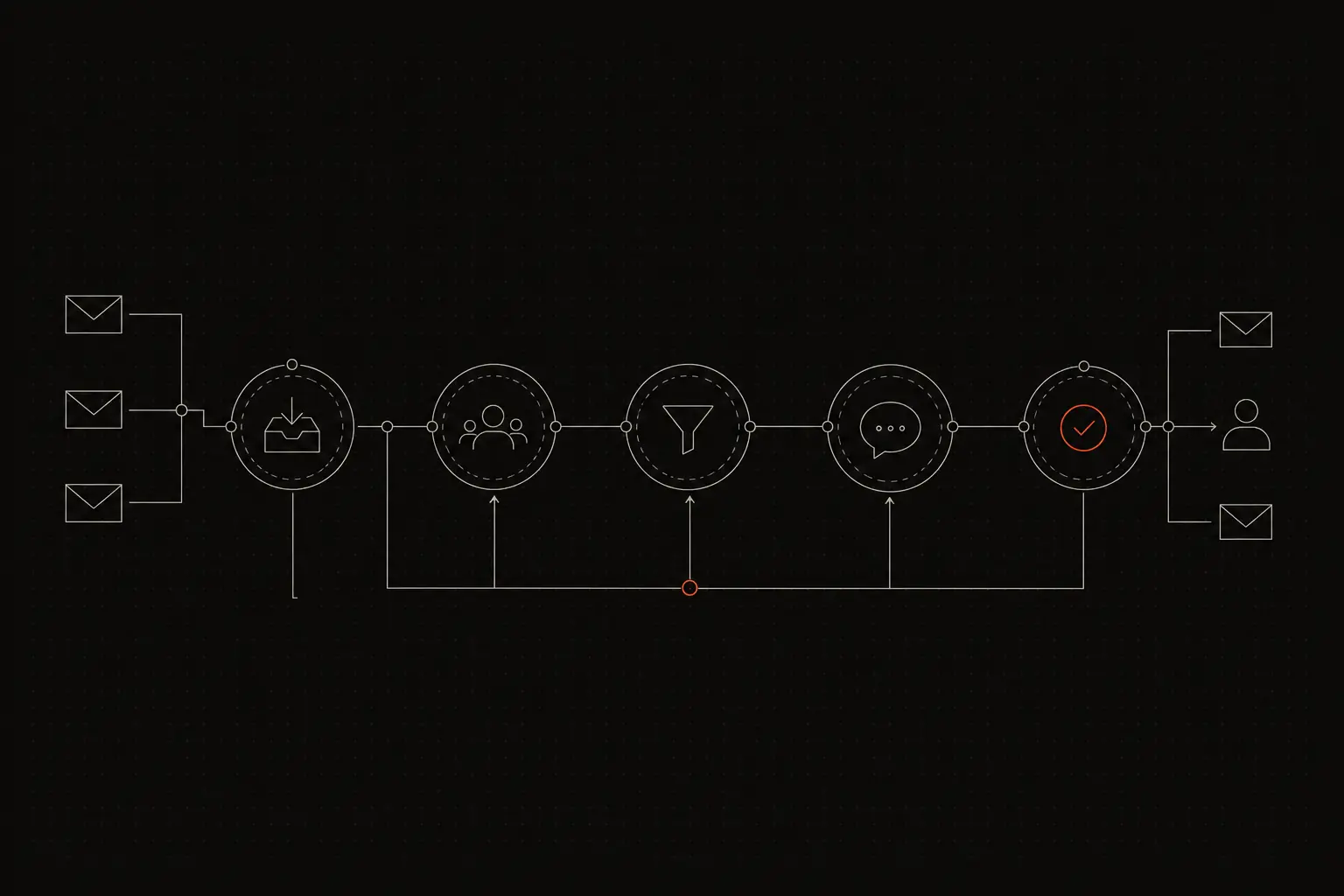
Multi-account email management is the practice of handling incoming messages from multiple email addresses through a coordinated system. Instead of each team member logging into separate inboxes independently, you centralize all accounts into one workflow with clear ownership, routing, and visibility.
This is different from email forwarding, where messages from one address are simply redirected to another. Centralized management preserves the identity of each address (replies go out from the correct one) while giving your team a single place to work.
Why Managing Multiple Accounts Matters
- Nothing falls through the cracks. When accounts are managed separately, each one is a potential blind spot. Centralizing them means every message is visible and tracked.
- Faster response times. Agents do not waste time switching between tabs and accounts. They see everything in one view and can prioritize across all channels.
- Correct sender identity. Customers who write to billing@ expect a reply from billing@, not from support@. Proper multi-account management ensures replies go out from the address that received the message.
- Better workload distribution. When all messages are in one system, you can distribute work evenly across your team regardless of which address a message arrived at.
- Clearer reporting. Centralized management gives you metrics across all accounts: total volume, response times, and resolution rates by address, team, and agent.
How to Manage Multiple Email Accounts
Step 1. Audit your existing email accounts
Start by listing every email address your team monitors. Common ones include:
- support@ or help@ for general customer support
- billing@ or accounts@ for payment and subscription questions
- feedback@ or suggestions@ for product feedback
- info@ or hello@ for general inquiries
- partnerships@ or press@ for business development
For each address, note:
- Who currently monitors it?
- What is the average daily volume?
- What types of messages does it receive?
- Are there any forwarding rules already in place?
- Who should replies come from?
This audit reveals how fragmented your email management is and helps you plan the consolidation.
Step 2. Choose a unified inbox platform
The key to managing multiple accounts is bringing them into a single tool where your team can see, assign, and reply to everything from one interface.
When evaluating tools, check for these capabilities:
- Multi-account support. The tool should let you connect multiple email addresses and keep them identifiable.
- Sender identity preservation. When an agent replies, the email should go out from the address the customer originally wrote to.
- Separate or merged views. Some teams want one combined inbox; others want to keep each address as a separate queue. The best tools support both.
- Routing rules per address. You should be able to set different routing, SLA, and assignment rules for each connected address.
- Unified reporting. Metrics should be available both per-address and across all addresses.
TidySupport supports connecting multiple email accounts and viewing them in a unified inbox. Each address maintains its own identity for outgoing replies, and you can set up separate routing rules per address or team.
Step 3. Connect all email accounts to the platform
Once you have chosen your tool, connect each email address. Most platforms support two methods:
OAuth connection (Google Workspace, Microsoft 365). This is the simplest and most reliable method. You authorize the shared inbox tool to access your email account directly. Messages sync in real time and replies go out through your email provider's servers.
SMTP/IMAP connection. For custom email hosts, you provide SMTP and IMAP credentials. This works with virtually any email provider.
Forwarding. If direct connection is not possible, you can set up forwarding rules in your email provider to route incoming messages to the shared inbox tool. The tool then sends replies through its own servers or via your configured SMTP.
After connecting, send test emails to each address and verify that:
- Messages appear in the shared inbox promptly.
- Replies go out from the correct sender address.
- Conversation threading works correctly.
- Any existing forwarding rules do not create duplicates.
Step 4. Organize accounts into teams or queues
With all accounts connected, decide how to organize them. You have two main approaches:
Unified view. All messages from all accounts appear in a single queue. Agents pick up the next message regardless of which address it came to. This works well for small teams where everyone handles every type of question.
Separate queues by address. Each email address feeds into its own queue. Billing questions stay in the billing queue and are handled by agents assigned to billing. This works better for larger teams with specialized roles.
Hybrid approach. Show all messages in a unified view but allow agents to filter by address when needed. This gives flexibility without rigid separation.
In most shared inbox tools, you can create teams (like "Billing Team" or "Technical Support") and assign specific email addresses to specific teams. When a message arrives at billing@, it automatically appears in the Billing Team's queue.
Step 5. Set up routing rules for each account
Different email addresses often need different handling. Configure routing rules that match each address's requirements:
- billing@: Route to the billing team. Set a 2-hour SLA because billing issues are time-sensitive.
- support@: Route via round-robin to all available support agents. Set a 4-hour SLA.
- feedback@: Route to a specific agent or team lead who triages product feedback weekly.
- partnerships@: Route to the business development team or a specific person.
Also configure auto-tagging. Messages arriving at billing@ can be automatically tagged with "billing" so they are easy to filter and report on later.
If certain addresses receive a mix of message types, add keyword-based routing within that address. For example, messages to support@ containing "invoice" or "charge" can be routed to the billing team even though they arrived at a general address.
Step 6. Define reply-from rules
One of the most common mistakes in multi-account management is sending replies from the wrong address. A customer who wrote to billing@ should receive a reply from billing@, not from support@ or a generic no-reply address.
Most shared inbox tools handle this automatically by defaulting to the address that received the original message. But verify this behavior for each connected account.
Also consider:
- Signatures. Each address may need a different email signature. Billing replies might include payment support hours and a link to invoices. Support replies might include a link to the knowledge base.
- From name. Decide whether replies should come from a team name ("TidySupport Billing") or an individual agent name ("Sarah from TidySupport"). Team names are more common for support; individual names can feel more personal.
Step 7. Train your team on the unified workflow
Even with everything configured, your team needs to understand the new system. Cover these topics in a training session:
- How to see which email address a message arrived at.
- How to switch the reply-from address if needed (for example, when a billing question comes in through the support address).
- How routing and assignment work for each account.
- When to reassign a conversation to a different team versus handling it directly.
- How to use tags and internal notes to coordinate across teams.
After training, monitor the first two weeks for common mistakes: replies going out from the wrong address, messages being missed because an agent did not realize they were responsible for a particular queue, or routing rules sending messages to the wrong team.
Step 8. Monitor and optimize
Once your unified workflow is running, use reporting to identify bottlenecks and opportunities:
- Volume by address. Which inboxes get the most traffic? Do you need to add agents to specific queues?
- Response time by address. Are some addresses consistently slower? Adjust SLAs or staffing accordingly.
- Misrouted messages. Track how often messages need to be manually reassigned. High reassignment rates suggest your routing rules need refinement.
- Customer satisfaction by address. If billing customers consistently rate support lower, there may be a training or process issue specific to that queue.
Review these metrics monthly and adjust routing, staffing, and SLA targets as your volume patterns evolve.
Common Mistakes to Avoid
- Managing accounts in separate tabs. If each address lives in its own email client, you have no unified view, no collision detection, and no consistent metrics. Centralize everything.
- Forwarding without a shared inbox. Forwarding to personal inboxes creates copies without coordination. Two agents reply to the same customer, and nobody tracks whether the issue was resolved.
- Using one generic address for everything. While consolidation is good, funneling all emails through a single info@ address makes routing harder and looks less professional to customers.
- Ignoring sender identity. Replying from the wrong address confuses customers and damages trust. Verify your reply-from settings after setup.
- Setting identical SLAs for all accounts. Different addresses serve different purposes with different urgency levels. A billing complaint needs faster attention than a general feedback submission.
FAQ
Can I manage multiple email accounts in one tool?
Yes. Shared inbox tools like TidySupport let you connect multiple email addresses (support@, billing@, sales@) and manage them all from a single interface. Each address can be kept as a separate inbox or merged into one unified view.
Should each department have its own email address?
Yes, separate addresses (support@, billing@, feedback@) help with organization and routing. Customers get a clearer idea of where to write, and your team can route and prioritize by address. Manage them all from one tool to avoid silos.
How do I prevent duplicate replies across accounts?
Use a shared inbox tool with collision detection. This feature warns agents when someone else is viewing or replying to the same conversation, preventing embarrassing duplicate responses regardless of which email address received the message.
What happens if a customer emails the wrong address?
In a unified inbox, this is easy to handle. The agent who sees the message can reassign it to the correct team with one click. The customer does not need to resend their email or contact a different address.
How many email accounts can I connect to a shared inbox?
Most shared inbox tools support connecting as many accounts as you need. TidySupport has no hard limit on connected email accounts. The practical limit is usually determined by how many distinct queues and routing rules you want to manage.
Frequently Asked Questions
Can I manage multiple email accounts in one tool?
Yes. Shared inbox tools like TidySupport let you connect multiple email addresses (support@, billing@, sales@) and manage them all from a single interface. Each address can be kept as a separate inbox or merged into one unified view.
Should each department have its own email address?
Yes, separate addresses (support@, billing@, feedback@) help with organization and routing. Customers get a clearer idea of where to write, and your team can route and prioritize by address. Manage them all from one tool to avoid silos.
How do I prevent duplicate replies across accounts?
Use a shared inbox tool with collision detection. This feature warns agents when someone else is viewing or replying to the same conversation, preventing embarrassing duplicate responses regardless of which email address received the message.