
How to Set Up a Shared Inbox for Your Support Team
Learn how to set up a shared inbox for your support team in 7 steps. Improve collaboration, reduce missed emails, and deliver faster customer support.
TidySupport Team
Published on April 11, 2026
If your support team is still sharing login credentials for a single Gmail or Outlook account, you already know the pain: duplicated replies, missed emails, and zero visibility into who is handling what. A shared inbox fixes all of that by giving your team one collaborative workspace for customer conversations.
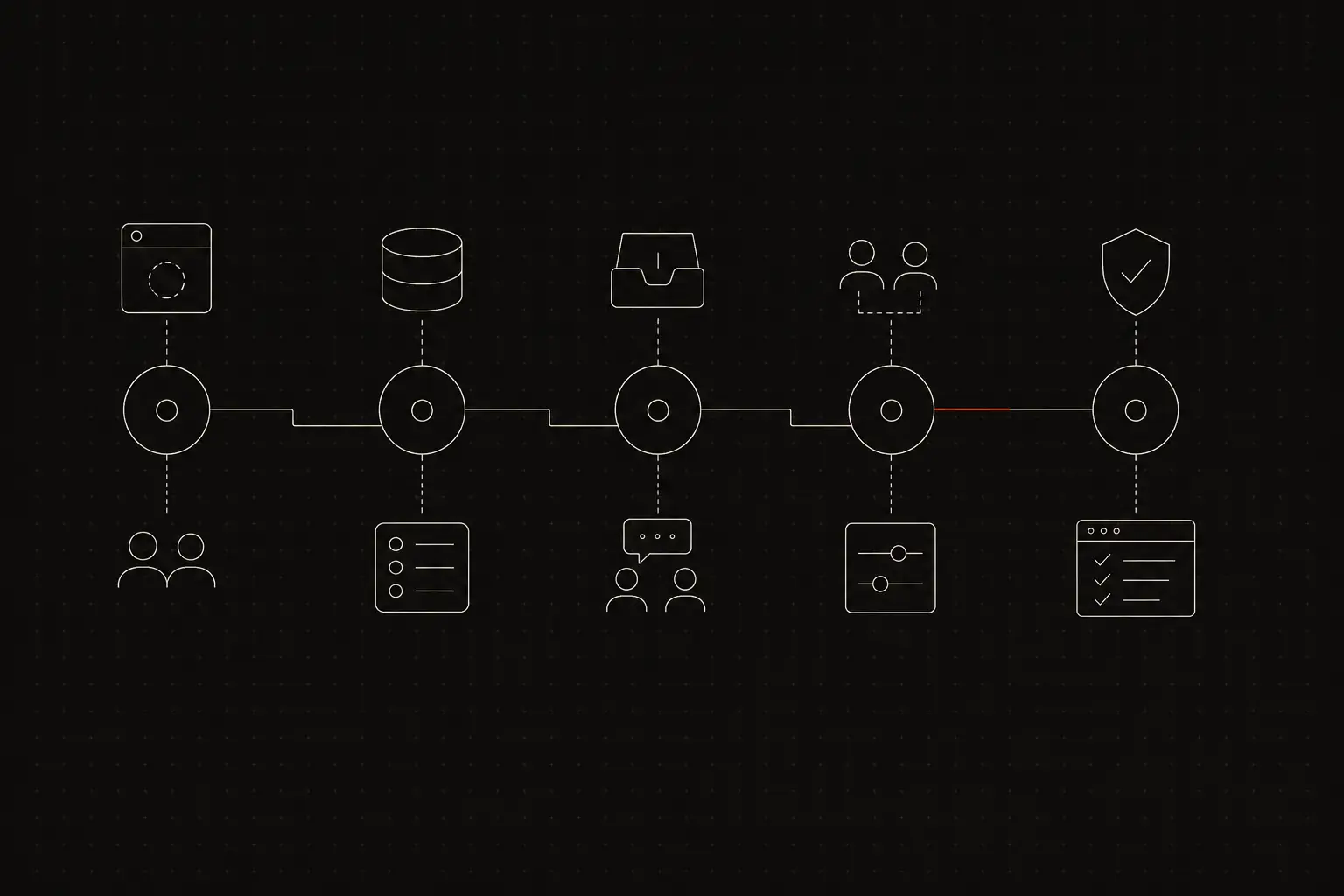
This guide walks you through every step of setting up a shared inbox, from choosing the right tool to configuring workflows that keep your team efficient and your customers happy.
What Is a Shared Inbox?
A shared inbox is a centralized email workspace where multiple team members can view, manage, and respond to incoming messages from a single address like support@company.com. Unlike forwarding rules or distribution lists, a shared inbox keeps every conversation in one place and shows who is working on what in real time.
Think of it as a team dashboard for email. Each message can be assigned, tagged, and tracked through its lifecycle. No one needs to wonder whether a customer got a reply because the entire team can see the conversation history and its current status.
Why a Shared Inbox Matters
- No more duplicate replies. Collision detection prevents two agents from responding to the same customer at once, saving your team from embarrassment and your customers from confusion.
- Full visibility across the team. Managers and teammates can see every conversation, its status, and who owns it without asking in Slack or shouting across the office.
- Faster response times. When workload is visible, teammates can jump in on overloaded queues. Routing rules can automatically direct messages to the right person.
- Accountability without micromanagement. Assignment and status tracking mean you can trust that nothing falls through the cracks without hovering over your team.
- Better onboarding. New hires can read past conversations to learn tone, common issues, and resolution patterns before they handle their first ticket.
How to Set Up a Shared Inbox
Step 1. Audit your current email workflow
Before you change anything, document what you have today. Map out every email address your team monitors (support@, billing@, info@, etc.), who has access, and how messages get routed.
Write down the pain points. Maybe certain emails sit unanswered for hours because nobody realized they were responsible. Maybe two people frequently reply to the same thread. Maybe your team lead has no way to see average response time.
This audit gives you a baseline. When you launch the shared inbox, you can measure whether those specific problems improve. It also surfaces requirements you might overlook, like the need to keep a separate billing@ queue or the fact that your sales team occasionally forwards leads to support.
Take note of any integrations your current setup depends on, such as CRM syncs, ticket trackers, or notification bots. These will need to work with your new shared inbox tool.
Step 2. Choose a shared inbox platform
Not every shared inbox is the same. Some are full-blown help desk systems with ticketing, SLAs, and reporting. Others focus on simplicity, giving small teams a clean collaborative interface without the overhead.
When evaluating options, prioritize these features:
- Email and chat unification. If you handle both email and live chat, pick a tool that combines them. TidySupport, for example, brings email and chat into a single inbox so agents do not need to switch between apps.
- Assignment and collision detection. The tool should let you assign conversations to specific agents and warn when two people are viewing the same thread.
- Tagging and filtering. You need a way to categorize conversations by topic, priority, or customer segment.
- Reporting. At minimum, you want metrics on response time, resolution time, and volume by channel.
- Integrations. Check that the tool connects with your CRM, project management app, and any other systems your team relies on.
Avoid overbuying. A 10-person startup does not need an enterprise help desk with 200 features. Start with a tool that matches your current team size and workflow, and grow into advanced features as needed.
Step 3. Connect your email addresses
Once you have chosen a platform, the first technical step is connecting your support email addresses. Most shared inbox tools support two methods:
Email forwarding. You set up a forwarding rule in Gmail, Outlook, or your email host so that incoming messages are automatically sent to the shared inbox. This is the fastest method and works with almost any email provider.
Direct connection via IMAP/SMTP or OAuth. Some tools let you connect your email account directly. This approach keeps messages in sync in both places and usually provides a cleaner setup. TidySupport supports direct connection to Google Workspace and custom SMTP servers, making setup straightforward.
If you have multiple addresses (support@, billing@, feedback@), connect them all. Most shared inbox tools let you keep them separated as distinct channels or inboxes within the platform so nothing gets mixed up.
After connecting, send a few test emails to confirm messages arrive in the shared inbox and that replies go out from the correct address.
Step 4. Set up teams and permissions
Now bring your team into the platform. Invite each support agent and configure their roles.
Most shared inbox tools offer at least two roles: admin and agent. Admins can change settings, manage integrations, and view all reports. Agents can view and respond to conversations assigned to them or to shared queues.
If your team is large enough, organize agents into groups. For example, you might create a "Billing" team and a "Technical Support" team. This makes it easier to route conversations to the right group and helps with reporting later.
Set permissions carefully. Not every agent needs access to every inbox. If you connected a billing@ address, restrict access to agents who handle billing questions. This reduces noise and prevents accidental replies on topics outside an agent's expertise.
Step 5. Create routing and assignment rules
Manual triage is one of the first things to automate. Routing rules let the shared inbox automatically assign incoming conversations based on criteria you define.
Common routing strategies include:
- Round-robin assignment. Each new conversation goes to the next available agent in rotation. This distributes workload evenly.
- Keyword-based routing. Emails containing words like "invoice" or "refund" go to the billing team. Emails mentioning "bug" or "error" go to technical support.
- Customer-based routing. VIP customers or enterprise accounts can be automatically assigned to a senior agent or a dedicated account manager.
- Channel-based routing. Chat conversations go to one team; email goes to another.
Start simple. A basic round-robin rule is often enough for teams under ten people. Add keyword and customer-based routing as your volume grows and your categories become clearer.
In TidySupport, routing rules can be configured in the inbox settings and applied across both email and chat channels, so you only need to set them up once.
Step 6. Build internal workflows
A shared inbox is more than a place to read emails. It is a workflow engine. Set up the internal processes that help your team work consistently.
Tags and statuses. Define a clear set of tags (e.g., "bug-report," "feature-request," "billing-issue") and statuses (e.g., "open," "pending," "resolved"). Consistency here makes reporting meaningful.
Internal notes. Train your team to use internal notes instead of forwarding emails to colleagues for input. Notes keep the context attached to the conversation where it belongs.
Saved replies. Create templates for common questions. A good saved reply answers the question and sounds natural, not robotic. (See our guide on creating canned responses for tips.)
SLAs. If you have response time commitments, configure SLA rules so the shared inbox highlights conversations that are approaching or have breached their deadline.
Document these workflows in a brief internal guide and share it with your team before launch.
Step 7. Train your team and go live
The best setup in the world fails if your team does not know how to use it. Schedule a 30-minute walkthrough covering:
- How to pick up and assign conversations.
- When and how to use internal notes.
- How to apply tags and update statuses.
- Where to find saved replies.
- What to do when a conversation needs escalation.
After the walkthrough, run a soft launch. Route a portion of your incoming email to the shared inbox while keeping the old system active as a safety net. Monitor for a few days to catch any issues with delivery, routing, or permissions.
Once you are confident everything works, switch all traffic to the shared inbox and retire the old workflow. Keep the old email account connected as a forwarding source if needed, but make the shared inbox the single source of truth.
Common Mistakes to Avoid
- Skipping the audit. Jumping straight into a new tool without understanding your current workflow means you will recreate the same problems in a different interface.
- Over-engineering routing rules. Start with simple rules and add complexity only when you have data showing it is needed. Over-complicated routing often sends conversations to the wrong place.
- Ignoring permissions. Giving every agent access to every inbox creates noise and increases the risk of accidental replies on sensitive topics.
- Not training the team. Tools are only effective when people know how to use them. Even a 30-minute session dramatically reduces mistakes during the first week.
- Forgetting to measure. Set benchmarks before the switch so you can prove the shared inbox is delivering results. Without a baseline, improvement is invisible.
FAQ
What is the difference between a shared inbox and a distribution list?
A distribution list forwards copies of emails to each team member's personal inbox, creating duplicates and confusion about who is handling what. A shared inbox is a single, centralized workspace where every team member can see, assign, and respond to emails collaboratively without duplication.
Can I use a shared inbox with my existing email address?
Yes. Most shared inbox tools, including TidySupport, let you connect your existing support email address (like support@company.com) so customers never notice a change. All incoming messages simply appear in the shared workspace instead of a personal inbox.
How many team members can use a shared inbox at the same time?
There is no practical limit. Modern shared inbox platforms are built for concurrent access. Features like collision detection ensure two agents never draft a reply to the same conversation simultaneously.
Will switching to a shared inbox disrupt our current support workflow?
The transition is usually seamless. You keep your existing email addresses, and most tools offer import options for historical conversations. The main adjustment is learning the new interface, which typically takes a day or two.
Do I need a shared inbox if my team is only two or three people?
Even small teams benefit from a shared inbox. The moment two people share a support email, you risk duplicate replies and missed messages. A shared inbox eliminates those problems regardless of team size, and it scales naturally as you hire.
Frequently Asked Questions
What is the difference between a shared inbox and a distribution list?
A distribution list forwards copies of emails to each team member's personal inbox, creating duplicates and confusion about who is handling what. A shared inbox is a single, centralized workspace where every team member can see, assign, and respond to emails collaboratively without duplication.
Can I use a shared inbox with my existing email address?
Yes. Most shared inbox tools, including TidySupport, let you connect your existing support email address (like support@company.com) so customers never notice a change. All incoming messages simply appear in the shared workspace instead of a personal inbox.
How many team members can use a shared inbox at the same time?
There is no practical limit. Modern shared inbox platforms are built for concurrent access. Features like collision detection ensure two agents never draft a reply to the same conversation simultaneously.
Will switching to a shared inbox disrupt our current support workflow?
The transition is usually seamless. You keep your existing email addresses, and most tools offer import options for historical conversations. The main adjustment is learning the new interface, which typically takes a day or two.